
What EPG means
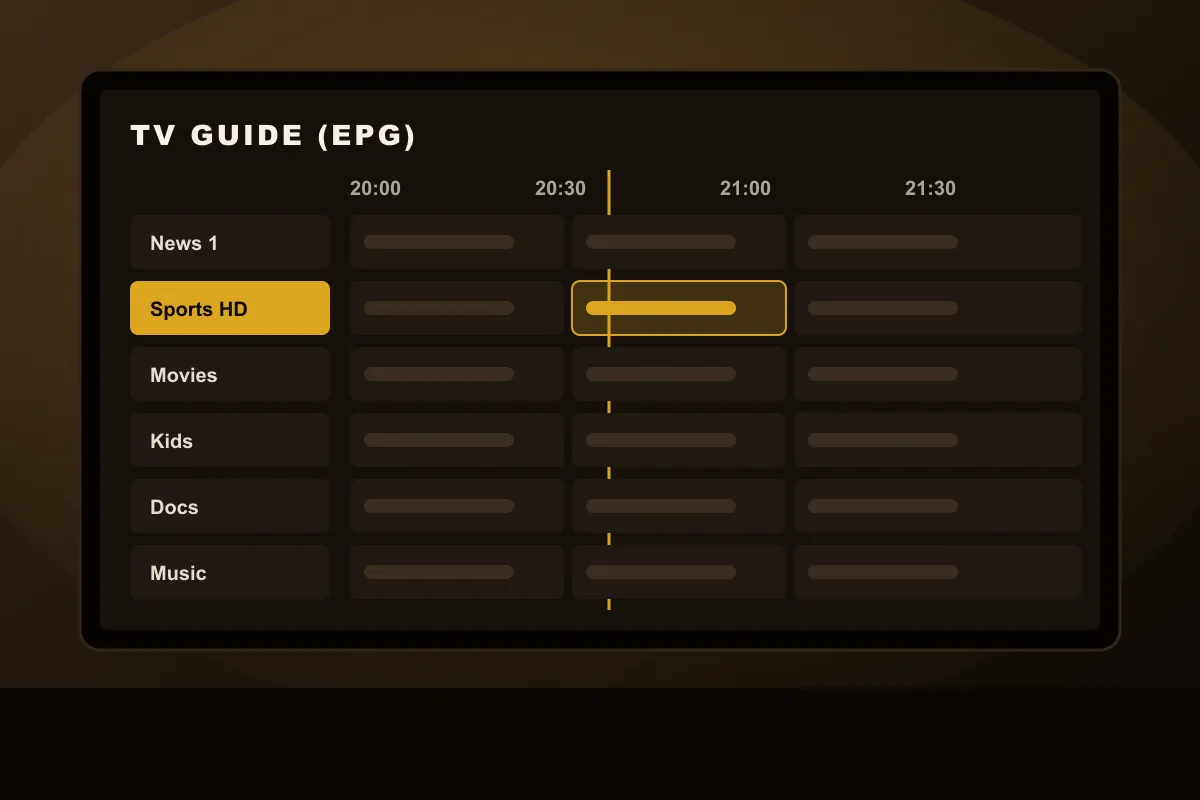
EPG stands for Electronic Program Guide. In an IPTV player it is the grid or list that shows each channel’s schedule: the programme playing now, the next one, and often a week of listings ahead and behind. A good IPTV EPG makes live TV feel like a normal television: you browse the guide, see what is on, and press OK to watch.
Where the guide data comes from
The video and the guide are two different things. The video stream comes from the service’s servers when you open a channel. The guide is a separate file, usually in a format called XMLTV, that lists every programme with a start time, an end time, a title and sometimes a description and image. Your player app downloads that file and matches each listing to a channel using an ID.
- With an Xtream login, the player usually fetches the guide automatically from the same server.
- With an M3U URL, you may need to add a separate EPG link (an XMLTV URL) in the app. Our IPTV M3U guide shows where.
Why the guide shows the wrong times
Guide files often store times in UTC or in one reference time zone. The player converts them to your local time using the device clock and its own EPG time setting. If either is off, every listing shifts by one or more hours. The fix:
- Check that your TV or stick shows the correct time and time zone.
- In the player app, find “EPG time shift”, “EPG offset” or “time zone” and set it until “now playing” matches your clock.
- After daylight saving changes, check it again. Some apps adjust automatically, others do not.
This matters most in countries with several time zones, such as the USA and Canada.
Why some channels have no listings
A blank row in the guide usually has one of three causes:
- The guide is still loading. Large guides take a few minutes on the first start.
- The channel ID does not match. The guide has data, but the player cannot link it to that channel. Refreshing the EPG often fixes it.
- No data exists. Some smaller channels and temporary event channels simply do not publish a schedule.
EPG and catch-up
Catch-up (also called replay or timeshift) lets you watch programmes that already aired. Both FluxIPTV plans include 7-day catch-up on channels that support it. Catch-up depends on the guide: you pick a past programme from the EPG, and the player requests that time slot from the server. If the guide is wrong by an hour, catch-up starts an hour off too. So fix the time offset first.
Not every player app supports catch-up. If you rely on it, ask us which app to use on your device.
Getting the best guide experience
- Use an Xtream login when your app supports it; the guide loads automatically
- Set the EPG time offset on day one
- Let the guide download fully before judging it
- Refresh the EPG once a day if your app does not do it automatically
- Add your main channels to favourites so the guide view stays short
The best way to see how the guide behaves on your device is to try it. Check it during a free 24h IPTV test.