
Setup guide · Fire TV
IPTV for Firestick – Complete Setup Guide
The Amazon Fire TV Stick is the most popular way to watch IPTV on a TV in the USA and Canada. This guide takes you from a fresh stick to live TV in about ten minutes, and fixes the usual problems.
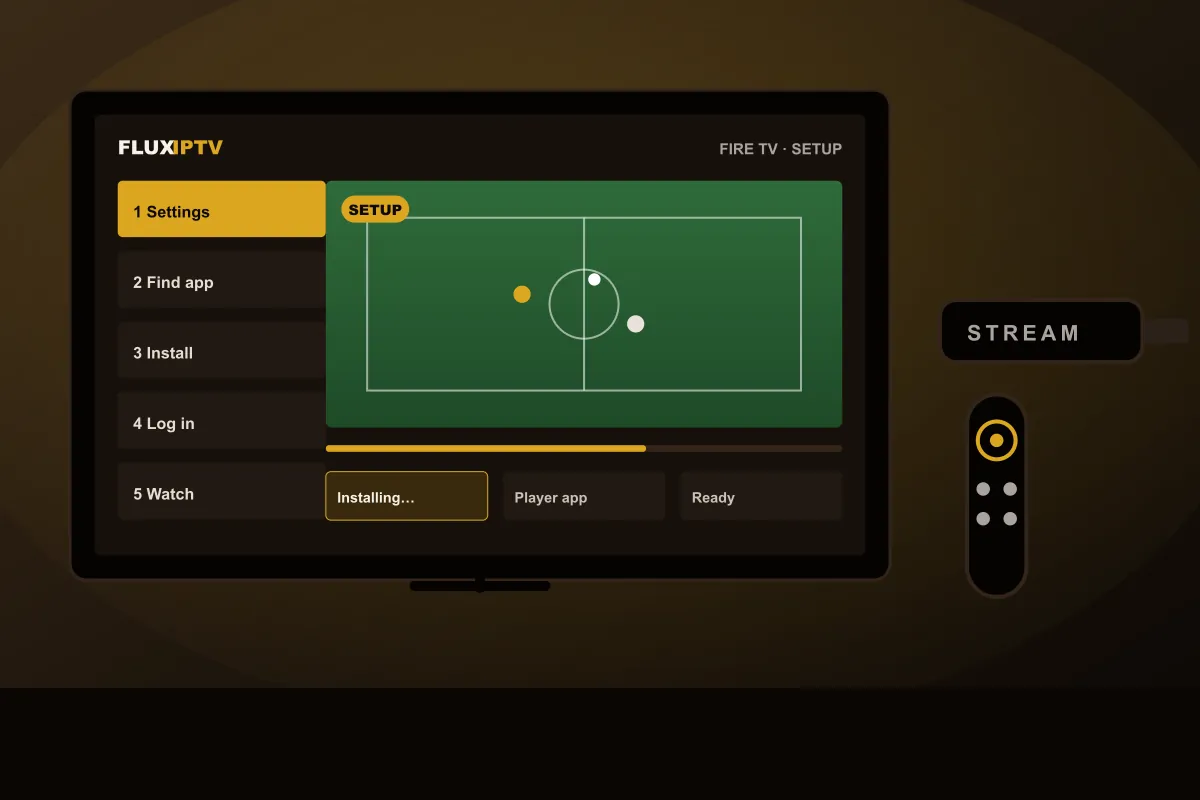
In short: To use IPTV for Firestick, install a compatible player app on your Fire TV, open it, and enter the login details from your provider (an Xtream-style login or an M3U URL). Your channel categories, TV guide and on-demand library then load. FLUXIPTV sends the exact steps for your model with a free 24-hour trial.
How IPTV for Firestick works
A Fire TV Stick is a small Android-based streaming device that plugs into your TV's HDMI port. On its own it runs apps like any smart TV. IPTV for Firestick simply means adding one more app, a player, which connects to your IPTV service and shows its live channels, TV guide, movies and series.
You need four things:
- A Fire TV device: Stick, Stick 4K / 4K Max, Cube or a Fire TV Edition TV
- A compatible player app
- Login details from your IPTV service (FLUXIPTV sends these on WhatsApp)
- A stable internet connection: about 10 Mbps for HD, 25 Mbps or more for 4K
Why the Fire TV Stick is a good IPTV device
- Cheap and portable: it takes one HDMI port, and you can move it between rooms or take it to the cottage.
- Fast menus: recent models load large channel lists and program guides quickly.
- A real remote: the direction pad and channel buttons suit live TV zapping.
- 4K models: the Fire TV Stick 4K and 4K Max handle high-bitrate streams and support HDR.
Older or basic sticks work well for HD but can struggle with 4K and huge playlists. If yours feels slow, a newer 4K Max makes a noticeable difference.
How to set up IPTV for Firestick, step by step
The steps below are the same for every Fire TV device. We send the name of the recommended player app with your trial, because the best choice depends on your model and on what is currently available in the Appstore.
- 01
Check your Fire TV model
Open Settings → My Fire TV → About. Note the model name and Fire OS version, and send it to us with your trial request.
- 02
Install a player app
Search the Amazon Appstore for the player we recommend. If it is not in the store, we explain the approved alternative for your model.
- 03
Add your login
Open the app and enter the details we send: an Xtream-style login (username, password, server) or an M3U playlist URL.
- 04
Load and watch
Categories, the TV guide and the on-demand library load. Pick a channel, then add favorites with the remote.
Player app tips for Fire TV
These tips apply to most players used for IPTV for Firestick.
- Set the EPG time zone in the player's settings so the guide matches Eastern, Central, Mountain or Pacific time (or Atlantic and Newfoundland in Canada).
- Use favorites. Most players let you long-press a channel to add it to a favorites group, which makes zapping much faster.
- Pick the right stream format. If a player offers HLS and MPEG-TS, try the other one when a channel stutters.
- Keep storage free. Fire TV sticks have limited storage; uninstall apps you don't use.
Some newer Fire TV models run Amazon's Vega OS and only install apps from the Amazon Appstore. Older models run Fire OS and support a wider range of players. Tell us your model and we'll suggest what works.
Common IPTV for Firestick problems and fixes
Buffering or freezing
Switch the stick to your router's 5 GHz Wi-Fi, move the router closer, or use an Amazon Ethernet adapter. Restart the stick (Settings → My Fire TV → Restart) once a week. Test in the evening, when home and neighborhood networks are busiest.
The app won't open or crashes
Go to Settings → Applications → Manage Installed Applications, select the player, and use Clear cache. If it still fails, uninstall and reinstall it.
Login error
Check for spaces or capital letters in the username, password and server address. Copying the details from WhatsApp on your phone into the TV keyboard is where most typos happen.
The guide is empty or the times are wrong
Refresh the EPG in the player settings and check the time-zone offset.
Low storage warning
Clear the cache of your largest apps and remove unused ones.
Test IPTV for Firestick before you pay
The best way to know whether IPTV for Firestick works in your home is to try it. Request a 24-hour free trial and follow our IPTV test checklist. If it works well, compare the plans. Using a TV's own apps instead of a stick? Read the Smart TV guide.
Firestick questions
Which Fire TV devices work with IPTV?
Fire TV Stick (2nd generation and newer), Fire TV Stick Lite, Fire TV Stick 4K and 4K Max, Fire TV Cube and TVs with Fire TV built in all run compatible player apps. For 4K content, use a 4K model on a 4K TV.
Do I need a VPN or root access?
No root or modification is needed. You install a normal player app and log in. Whether you use a VPN for privacy is your own choice.
What if the player app is not in the Amazon Appstore?
App availability changes. Tell us your model and we point you to a player that works on it. Some newer Fire TV models only install apps from the Appstore, so the choice depends on your device.
Why does my Firestick buffer?
Usually weak Wi-Fi, a full device cache or a busy network in the evening. Move to the 5 GHz band, restart the stick, clear the app cache, or use an Ethernet adapter. See the troubleshooting section above.
Can I test before paying?
Yes. Request a 24H free trial on WhatsApp and set it up on your Firestick using this guide.
Try it on your Firestick today
Send us your Fire TV model on WhatsApp. We reply with a 24-hour trial login and the right app for your device.