
Device & stream quality check
IPTV Test – Check FLUXIPTV on Your Own Device
A 24-hour test tells you more than any review can: whether the app runs on your TV, whether your Wi-Fi keeps up at 9 PM, and whether the categories you care about are there. Here is how to run a proper one.
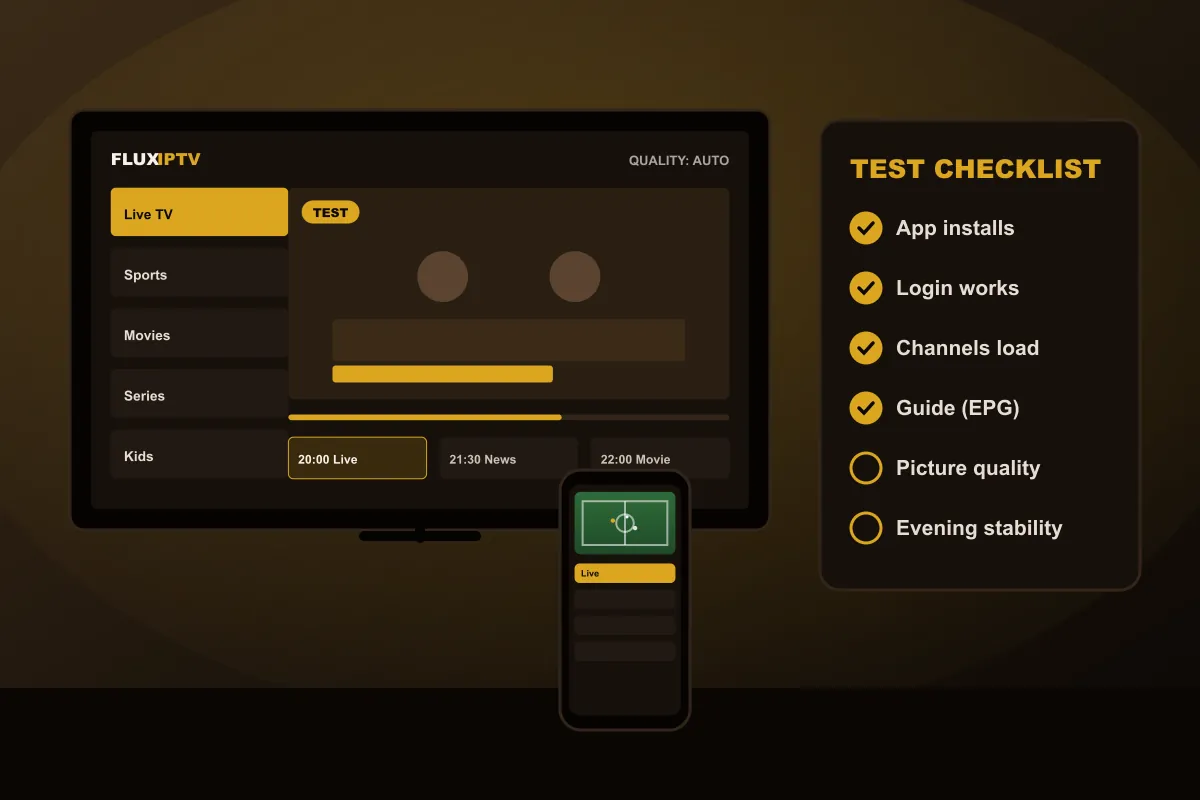
In short: An IPTV test is 24 hours of free access that lets you check a streaming service on your own device before paying. Request your FLUXIPTV test on WhatsApp, install the recommended app, then check loading speed, the TV guide, picture quality and evening stability.
What is an IPTV test?
It is short, temporary access to a streaming service. With FLUXIPTV it lasts 24 hours. You get real login details, install a player app, and use the service exactly as a paying customer would. When the time is up, access stops on its own.
The point is not just to see whether “it works”. It is to find out whether it works on your television, with your internet provider, at the hours you actually watch. Those three things vary more from home to home than the service itself.
Why test compatibility before subscribing
- Device quirks: an older Smart TV may only support certain apps, and a basic streaming stick may struggle with 4K.
- Home network: a TV two rooms away from the router behaves very differently from a phone next to it.
- Evening traffic: busy hours on your provider's network show problems a morning check would miss.
- Your content: only you know which categories, sports or languages matter in your home.
A 24-hour test answers all four before you spend anything. It also shows you how our support works, because you will probably ask us at least one setup question.
Your 24-hour test checklist
Work through these checks during your 24 hours. Tick them off as you go.
- Installation: the recommended app installs and opens on your device without errors.
- Login: your test details are accepted and the category list loads (see the player login guide or the M3U guide if not).
- Zapping speed: switch between ten channels. Each should start within a few seconds.
- TV guide (EPG): “now” and “next” appear, and the times match your time zone.
- Picture quality: compare HD and FHD channels on your largest screen; try 4K only on a 4K TV with a fast connection.
- Your must-haves: check the sports, news, movies or language categories you actually watch.
- Movies & series: start a title, pause it, and resume it.
- Evening stability: watch one live channel for 30–60 minutes between 7 and 11 PM.
- Second device: if you plan to watch on a phone or tablet too, install the test there as well.
- Support: ask us one question and see how quickly and clearly we answer.
Tip: if a channel buffers, try it again over Ethernet or on the 5 GHz Wi-Fi band before deciding. In most homes, the Wi-Fi signal where the TV stands is the weak link, not the stream.
Devices you can test
You can run the test on any device that supports a compatible player app:
- Smart TVs: Samsung (Tizen), LG (webOS) and TVs running Google TV or Android TV (Smart TV setup guide)
- Amazon Fire TV Stick, Fire TV Cube and Fire TV Edition TVs (Firestick setup guide)
- Android TV boxes, Chromecast with Google TV and Nvidia Shield-type devices
- Apple TV, iPhone and iPad
- Android phones and tablets
- Windows and Mac computers
Roku devices have very limited support for third-party player apps. If Roku is all you have, ask us before you test. Viewers in the United States can read more on our IPTV USA page, and Canadian viewers on the IPTV Canada page.
How to request your 24H IPTV test
Everything happens on WhatsApp. There is no form to fill in and no card details to enter.
- 01
Send one message
Tap the WhatsApp button and tell us your device, for example “LG TV 2021” or “Fire TV Stick 4K”, and whether you are in the USA or Canada.
- 02
Receive test access
We reply with 24-hour test login details and the setup steps for your device and player app.
- 03
Run the checklist
Work through the checks below over the day, including one evening session.
- 04
Keep or skip
If it passes, choose a plan. If not, simply let the test expire. There is nothing to cancel.
From test to subscription
If your device passes the checklist, moving on is simple. There is one 1-year plan: €50 for 1 account, €95 for 2 accounts or €140 for 3 accounts, so you only decide how many screens need to play at the same time. You can keep using the same app on the same device; we just send your subscription login once payment is confirmed.
If the test did not go well, tell us what happened. Sometimes a different app or a Wi-Fi change fixes it; sometimes a device is simply not a good fit, and it is better to know that before you pay.
Questions about testing
What is an IPTV test?
An IPTV test is temporary access to a streaming service, usually for 24 hours, so you can check that it works on your device and internet connection before buying a subscription.
Is the FLUXIPTV test free?
Yes. The 24-hour test is free and no payment is taken. If you decide not to subscribe, the test access simply ends. Offer details are on the free trial page.
Can I run the test on more than one device?
You can install the test login on another device to compare, for example your TV and your phone. Like a regular subscription, it streams on one device at a time.
Which app should I use for the test?
That depends on your device. We recommend a compatible player app when we send your test, so you are not guessing between dozens of apps in the store.
What if something does not work during the test?
Message us on WhatsApp with a screenshot. Many problems come from app settings or Wi-Fi and can be fixed in a few minutes, which is exactly what the test is for.
Ready to test FLUXIPTV at home?
Tell us your device on WhatsApp. We send 24-hour test access and setup steps. Then work through the checklist.